
1. Home
  2. Moodle
  3. Online Submission
  4. Binding your Moodle assignments to the Student Record System (SRS)

Binding your Moodle assignments to the Student Record System (SRS)

Overview

If you planned summative assessments on your course in the DLE/Moodle where the grades need to be automatically transferred to the Student Record System (SRS) and S4, you will need to ensure the SRS binding has been enabled in the settings of the activity.

Things to consider
The grades get automatically transferred to SRS multiple times per day. However, we recommend waiting until the next day/24 hours to ensure there was enough time for the systems to complete this process.

You can only link one activity to SRS, so you will not be able to reuse the link. For example, if you have main and referral exam/test, we recommend linking the main one to SRS, whilst the referral assessments’ grades will manually need to be entered in SRS. This can be done by the Module Leaders if they have requested SRS accounts via the main IT Service Desk, or can also be completed by the School/Faculty Offices. Please liaise with them to know which method they prefer.

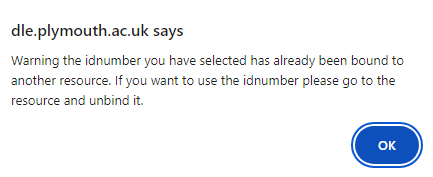
If you see the following error message, it indicates that the link has already been used once, so you cannot reuse it for another assessment. Each link can be used for one activity only – please do not save the settings of the activity. If you think the link should have not been used (so it is accidentally linked to an incorrect activity), you will need to search for the link in the settings of each activity. This is a manual process – unfortunately, there is no easy way to search for it. Once you have found the link, please unlink the activity and then link it with the assessment.


If you have an assessment separated out into multiple submission points or quizzes in the DLE, you will not be able to link all these activities to SRS, as each link can be used only once for one activity. In this case, we recommend setting up an empty submission point which you can use as a placeholder to upload the final grades (calculated from the multiple activities) and automatically transfer them to SRS. This activity can be linked to SRS.

Assignments

To bind your ‘Assignment’ activities to SRS, please follow the steps below.

  1. Please turn on editing mode with the toggle switch at the top-right corner, and then navigate to the settings of the activity.
  2. Please scroll down to the ‘Common module settings’ section, where you will need to select the appropriate assessment placeholder from the drop-down list next to the setting called ‘Bind to Student Record System (SRS)’.
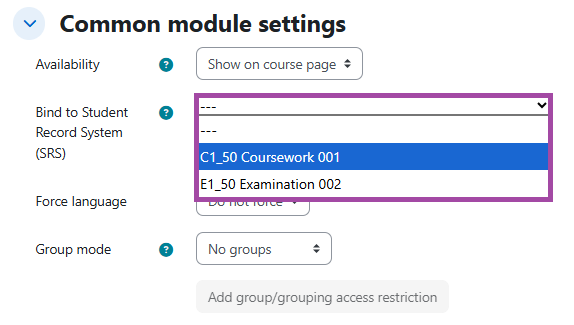
Screenshot of the ‘Bind to Student Record System (SRS)’ setting (highlighted).
  1. Once that is done, please ensure you save the settings.

You can now mark the submissions and release the grades to the students. If the grades did not appear in SRS and 24 hours have already passed, please complete the following troubleshooting steps.

Quizzes

To bind your ‘Quiz’ activities to SRS, please follow the steps below.

Please note, with quizzes we only recommend binding them to SRS once the marking process has been finished and the grades have been moderated, as the grades will get transferred to SRS immediately (at the time of marking), even if the marks have not been released yet. For ‘Assignments’ this is different – you can pre-link them to SRS.

  1. Please turn on editing mode with the toggle switch at the top-right corner, and then navigate to the settings of the activity.
  2. Please scroll down to the ‘Common module settings’ section, where you will need to select the appropriate assessment placeholder from the drop-down list next to the setting called ‘Bind to Student Record System (SRS)’.
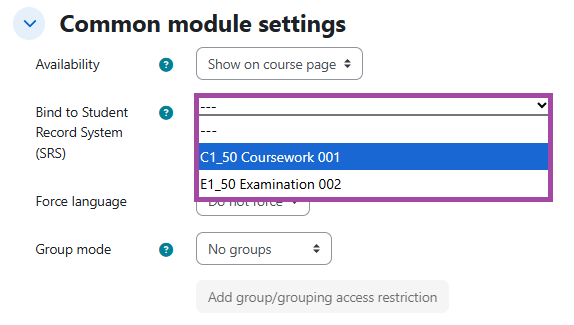
Screenshot of the ‘Bind to Student Record System (SRS)’ setting (highlighted).
  1. Once that is done, please ensure you save the settings.

You can now release the grades to the students. If the grades did not appear in SRS and 24 hours have already passed, please contact Digital Education.

Updated on October 23, 2026
Was this article helpful?

Related Articles

Still need support?
Can't find the answer you're looking for? Don't worry we're here to help!
Contact Digital Education