
Please join all sessions using the desktop app rather than a web browser for the best experience.
Download and use the Microsoft Teams desktop app
Quick hints and tips
The choices given when joining the session may default to the browser, but wherever possible use the ‘join on the Teams app’ option.
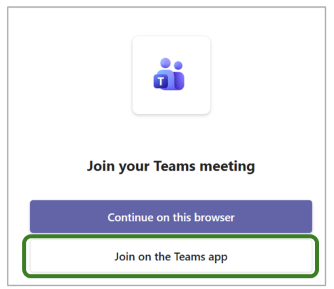
If you join via a browser by mistake, select Open in app from the menu at the top of the meeting window. If this option is not available, leave the session and rejoin using the desktop application.
Comparison user experience when joining a Teams meeting via the desktop app, browser and mobile. We strongly recommend the desktop app for all participants for the best experience possible for all.
| Feature | Desktop App | Browser | Mobile App |
| Join meetings | ✅ | ✅ | ✅ |
| Use chat | ✅ | ✅ | ✅ |
| Use audio and video | ✅ | ✅ | ✅ |
| Screen sharing | ✅ Best experience | ✅ Experience may vary | Limited |
| PowerPoint Live | ✅ Best experience | ✅ Experience may vary | View only – experience may vary |
| Breakout rooms | ✅ | ✅ | ✅ Limited by screen size |
| Whiteboard | ✅ Full experience | ✅ Experience may vary | Experience may vary, lmited on small screens |
| Meeting recordings | ✅ | ✅ | ✅ View recordings |
| Live captions | ✅ | ✅ | ✅ |
| Multi-tasking | ✅ Best experience | ✅ | Limited by screen size |
