
Please follow these preparation steps if you are a student or an external speaker who is going to be joining an online teaching session using Teams. If you are unsure where to find the Teams meeting link for your specific online teaching session, please contact the Module Leader or someone in the teaching team.
For University of Plymouth academic colleagues, please ensure you are using the Microsoft Desktop app. This is a default app on all staff laptops and please ensure it is on your personal device if you are not using a Plymouth issued machine.
Download and use the Microsoft Teams desktop app before your session.
- Download and use the Microsoft Teams desktop app for your online teaching session (Windows)
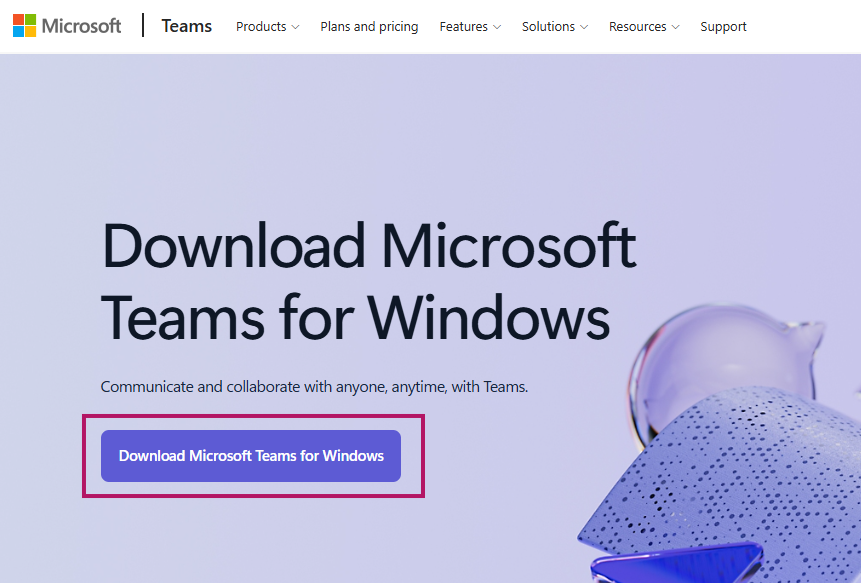
- Please join all sessions using the desktop app rather than a web browser. The choices given when joining the session may default to the browser, but wherever possible use the ‘join on the Teams app’ option.
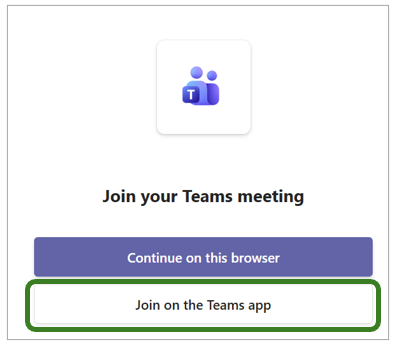
If you join via a browser by mistake, select Open in app from the menu at the top of the meeting window. If this option is not available, leave the session and rejoin using the desktop application.
Access and use your University of Plymouth Teams profile
- If you use Microsoft Teams for other work or study, ensure your University of Plymouth account has been added to Teams. Before joining teaching sessions, check that you are signed in to, or have switched to, your University of Plymouth profile. How to add or switch profiles in Teams
- Ensure you are signed in with your University of Plymouth account before joining the session.
- Try accessing Teams via your University account before the day of the session or practice switching accounts if you can.
- If you cannot switch your account, please try signing out of your existing account and then logging in with your University of Plymouth account.
Check your camera and microphone settings before entering the meeting
- While in the lobby, you can choose whether your camera and microphone are on or off.
- Please ensure that your microphone is muted when you first join the session.
- You are encouraged to keep your camera on where possible to support engagement and interaction.
- Once you enter the session, double-check that your camera and microphone settings are still set to your preferred options.
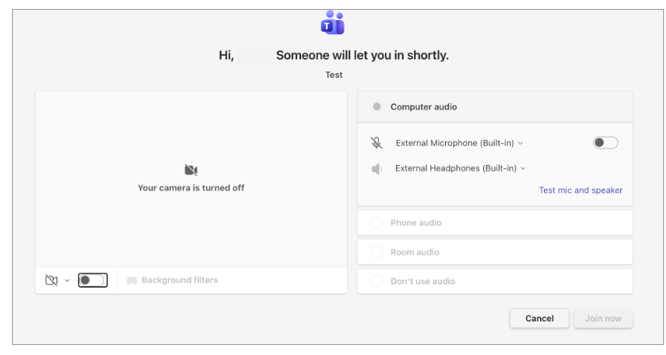
Please note teams will remember your camera and mic preferences from this joining screen for the next meeting. So always double check this screen is how you want to join the meeting whilst you wait to be admitted.
Using the meeting chat
- Messages posted in the main meeting chat are visible to all participants.
- During breakout activities, each breakout room has its own chat, which is visible only to the staff and those students assigned to that room.
- The meeting chat will become locked at the end of the session
Using reactions
- Use the reactions where approriate
- Use the Raise Hand function if you would like to ask a question or contribute to a discussion
Working in breakout rooms
- You will be able to share your screen with other participants.
- You will also have access to the Microsoft Whiteboard for collaboration and group activities
- Each breakout room will have its own chat, which is only visible to those in the room (and any co-organisers in the session)
Recording
The main sessions are recorded automatically. The person delivering the session will alert you to any changes in the recording process.
