
Overview
When reusing content from a previous DLE course, it is essential to import only the necessary items and use the correct method to prevent creating duplicate quiz questions or H5P objects.
This issue most commonly occurs when content has already been rolled over into a new course, and additional materials are later imported again from the same previous course (for example, a resource, an H5P activity or quiz questions).
Duplicates typically occur because quiz questions and H5P objects are stored in course repositories (the Question Bank and Content Bank), rather than only within individual activities. Importing content incorrectly may therefore create copies instead of reusing existing items.
This guide explains how to safely roll over or import selected content without creating duplicates.
How to roll over selected resources or activities
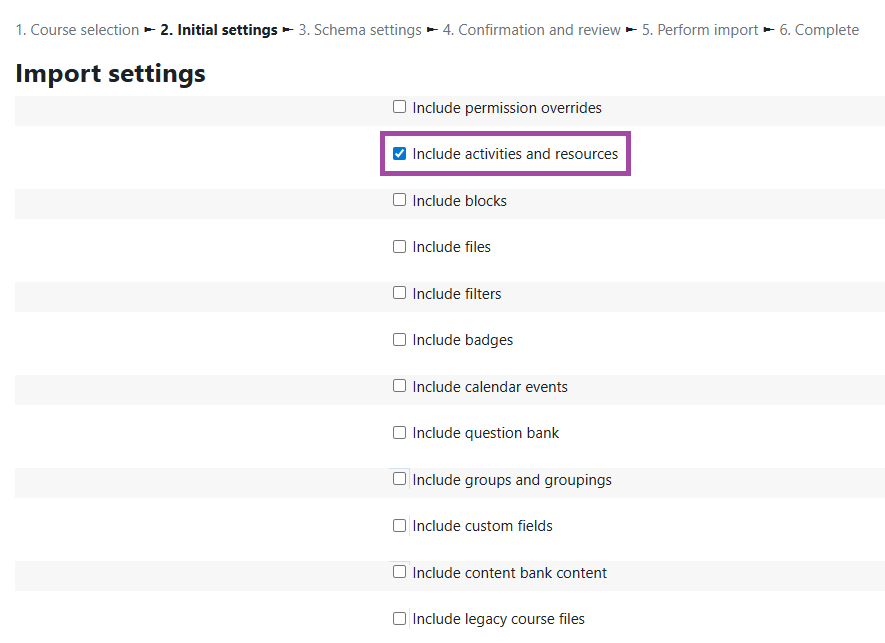
- The steps for rolling over selected resources or activities are the same as when importing content for the first time. However, once you have selected the course from which you wish to import content, you must ensure that the correct box is ticked under the ‘Import settings’ section. In this instance, only tick ‘Include activities and resources’. Please leave all other boxes unticked and select ‘Next’ at the bottom of the page to proceed.
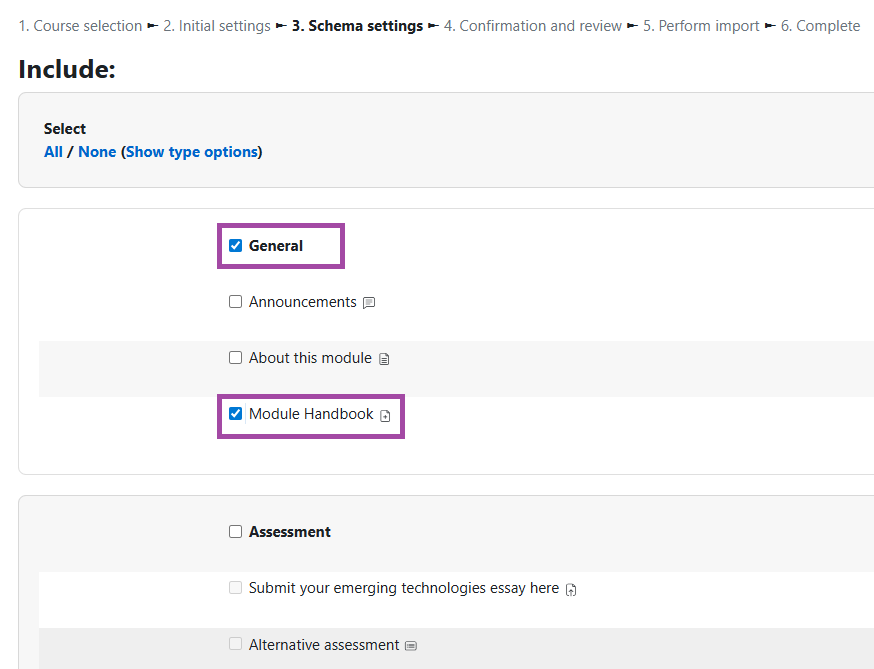
- On the next page, you will see the course content. Please tick only the resources and/or activities (including their relevant section(s)) that you wish to roll over, whereas the rest of the items need to remain unticked. Please select ‘Next’ at the bottom of the page to continue.
- On the following page, you will see a summary of your selections. The items you have selected will be indicated with a green checkmark, whereas the remaining items will be marked with a red X. If you are satisfied with your selection, select ‘Perform import’ at the bottom of the page. This will copy only the selected resources and/or activities over, without creating unnecessary duplicates of other content.
How to roll over quiz questions
The steps for rolling over quiz questions depend on the course from which you wish to import them.
- If the quiz questions are stored on a course whose content has already been rolled over into the new course, please do not then re-import the Question Bank. Doing so will create duplicate copies of each question already stored in the new course’s Question Bank. Instead, you should group the questions you wish to roll over (if not already grouped), export them, and then import them into the course.
- To group questions, please create a new category in your Question bank and move the required questions into it. You can still use a hierarchy of categories. For example, you may create a ‘Formal exam’ parent category with subcategories based on topics, each containing relevant questions (e.g. ‘Digital literacy’ and ‘Online safety’).
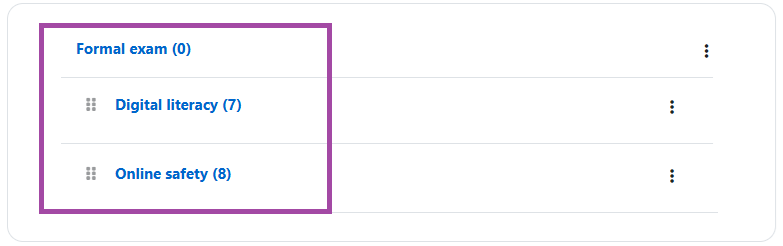
- You can then export this parent category (including subcategories) using the Moodle XML file type. Although other file types may be supported by the DLE, please ensure you use this specific file type.
- Finally, please import this exported XML file into the new course’s Question bank. As with export, select the Moodle XML file type during import. Once completed, the quiz questions will appear in the new course’s Question bank.
- If the quiz questions are stored on a different course whose content has not previously been imported into the new course, you have two options.
- Please follow the export/import steps above if you only need to roll over selected questions, or
- If you require the entire Question bank, you can then use the standard import process.
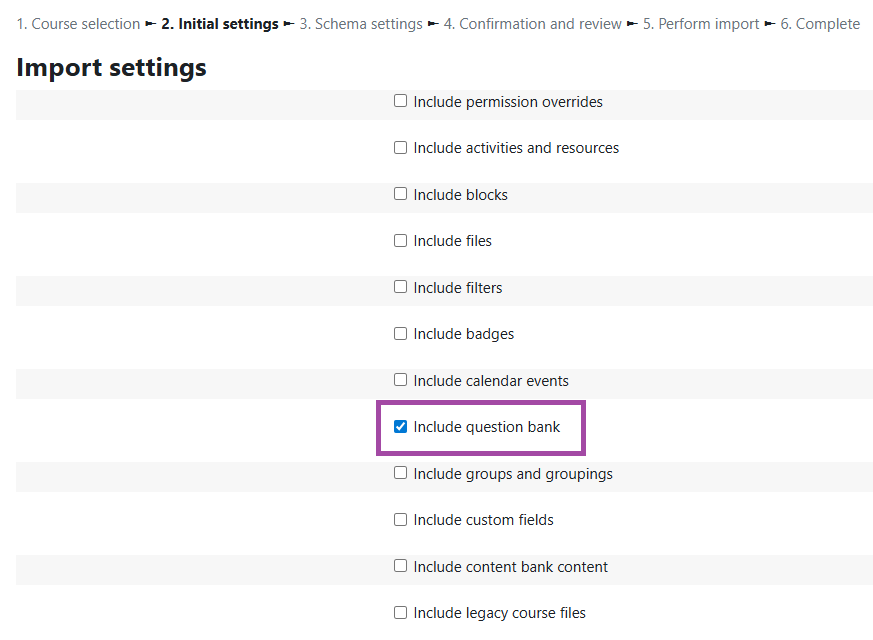
- In this instance, please ensure you only tick ‘Include question bank’ on the ‘Import settings’ page. Please leave all other boxes unticked and select ‘Next’ at the bottom of the page to proceed.
- On the following pages, the course content will be displayed as per usual. Please ensure all items remain unticked and select ‘Next’ at the bottom of the page.
- Finally, please select ‘Perform import’. This will then copy the questions across with any hierarchy of categories used on the original course, while preventing duplicates from being created.
How to roll over H5P objects
The steps for rolling over H5P object(s) depend on the course from which you wish to import them.
- If the H5P object(s) are stored on a course whose content has already been rolled over into the new course, please do not then re-import the entire Content bank. Doing so will create duplicate copies of each H5P object already stored in the new course’s Content Bank. Instead, you should either:
This approach ensures the required H5P content is available in the new course without creating duplicates.
