Overview
Moodle ‘Forums’ provide a space where students and teachers can communicate, share ideas and take part in discussions. They can also be used as icebreakers to help students get to know one another. Participants can create discussion topics and reply to existing posts. Depending on the activity settings, contributions can also be rated or graded. Posts may include text, images, multimedia and other file attachments.
In this article, we will show you how to add a ‘Forum’ activity to your DLE course.
How to add a ‘Forum’ activity to your course
To add a ‘Forum’ activity, please follow the steps below:
- Sign in to your DLE account and open the course in which you want to add this activity type.
- Enable ‘Edit mode’ at the top-right corner by using the toggle switch, then navigate to the section where you want the ‘Forum’ to appear. You can move the activity to another section later if needed.
- Select the plus icon beneath the chosen section, then select ‘Activity or resource’.
- Choose ‘Forum’ from the pop-up window where the available DLE activities and resources are listed.
- A new page will be shown where you can customise the activity settings.
How to set up a ‘Forum’ activity
General
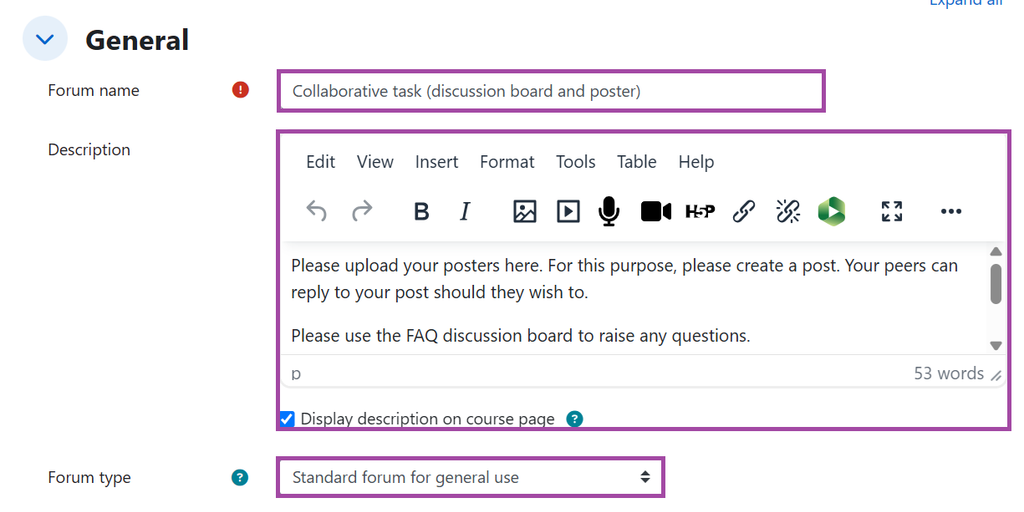
Under ‘General’, enter a meaningful name for your activity and add a description if needed. You can choose whether the description appears directly on the course page or is displayed only when participants open the activity.
You can also select the type of forum you want to use:
- ‘Standard forum for general use’: Allows participants to create multiple discussion topics and reply to posts. This is the recommended option for general discussions.
- ‘Standard forum displayed in a blog-like format’: Works similarly to the standard forum, but displays all discussion topics together on one page.
- ‘A single simple discussion’: Provides one discussion topic that everyone can reply to. This format does not support group-based activities.
- ‘Each person posts one discussion’: Allows each participant to start one discussion topic, to which others can respond.
- ‘Q and A forum’: Requires participants to submit their own response before they can view other participants’ posts.
Availability
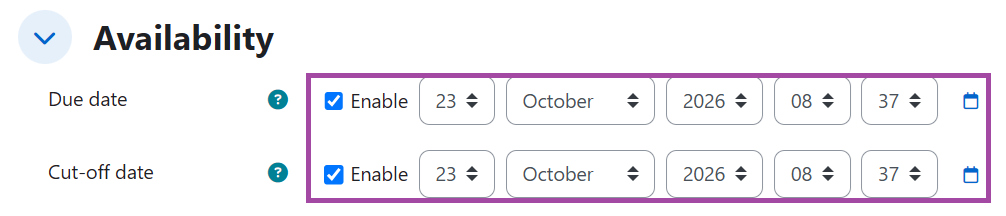
The ‘Availability’ section allows you to set a due date and a cut-off date for the activity. These dates can help you manage when participants are expected to contribute and when posting or replying will no longer be permitted. To apply either date, select the relevant ‘Enable’ checkbox and enter your preferred date and time.
Attachment and word count
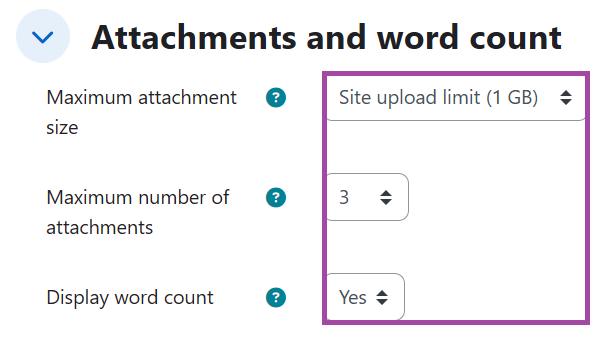
Use ‘Attachment and word count’ to control the files participants can upload and whether word counts are displayed when composing posts or replies.
- ‘Maximum attachment size’: Choose a permitted file size between 10 KB and 1 GB,
- ‘Maximum number of attachments’: Set the number of files participants can upload, from 0 to 100.
- ‘Display word count’: Decide whether the word count should appear when participants write a post or comment.
Subscription and tracking
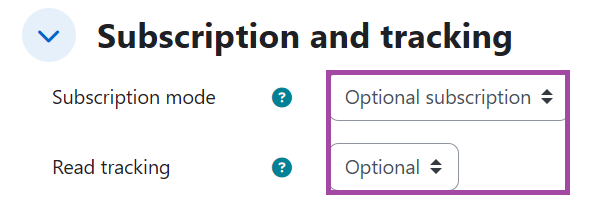
In Subscription and tracking, you can configure how participants receive notifications about new discussions and replies.
- ‘Optional subscription’: Participants choose whether they want to subscribe to the activity.
- ‘Forced subscription’: All participants are subscribed automatically and cannot unsubscribe.
- ‘Auto subscription’: Everyone is subscribed initially but can unsubscribe if they wish to.
Depending on your settings, email notifications may be sent approximately 30 minutes after a new post or reply is submitted.
You can also enable ‘Read tracking’, which helps participants identify discussion posts and replies they have not yet viewed.
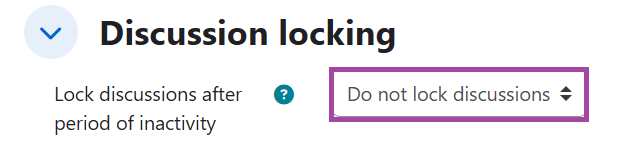
Discussion locking
The ‘Discussion locking’ section lets you automatically lock discussions after a specified period of inactivity. You can choose a period ranging from one day to one year, depending on how you want to manage older discussions.
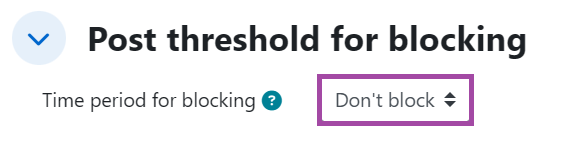
Post threshold for blocking
Use ‘Post threshold for blocking’ to limit excessive posting within a specified period. You can configure the threshold and the time period, which can range from one day to one year, to help manage participation in the activity.
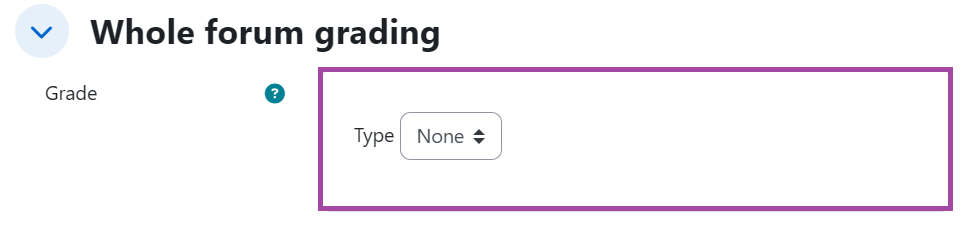
Whole forum grading
The ‘Whole forum grading’ section allows you to assign grades based on participants’ contributions across the activity. You can choose to grade using points or scales. For general discussion activities, we recommend leaving this feature unused unless grading is specifically required.
Ratings
Under ‘Ratings’, you can enable the option for staff to rate individual discussion posts and replies. You can also select the calculation method used to determine the overall rating, including average, count, maximum, minimum or sum.
This functionality is intended for staff members, such as Module Leaders, Teachers, Non-editing teachers and Faculty Support colleagues. Students cannot rate other participants’ contributions using this feature.

Common module settings
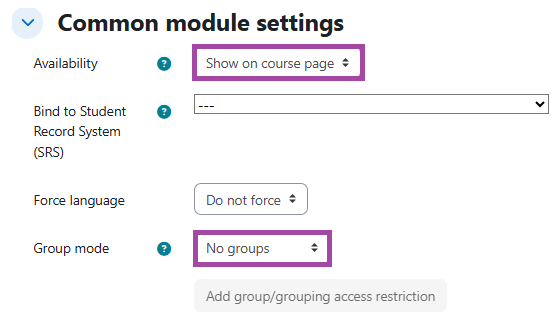
In ‘Common module settings’, you can control whether the activity is visible to students or hidden from them.
You can also configure ‘Group mode’ if you want participants to work in separate groups. This can be useful when sending group notifications to a particular group within the DLE course.
Restrict access
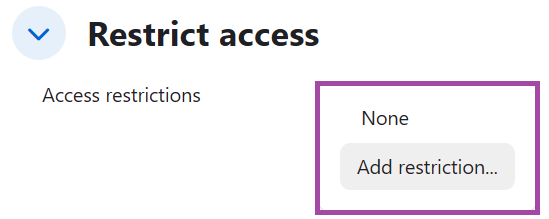
The ‘Restrict access’ section allows you to specify conditions that participants must meet before they can access the activity. Restrictions can be based on dates, grades, groups, groupings or user profile information. Unless you have a particular access requirement, we recommend keeping the default settings. For further guidance, see ‘How to restrict access to activities and resources in Moodle‘.
How to post a new topic
To post a new topic in a ‘Forum’ activity, please follow the steps below:
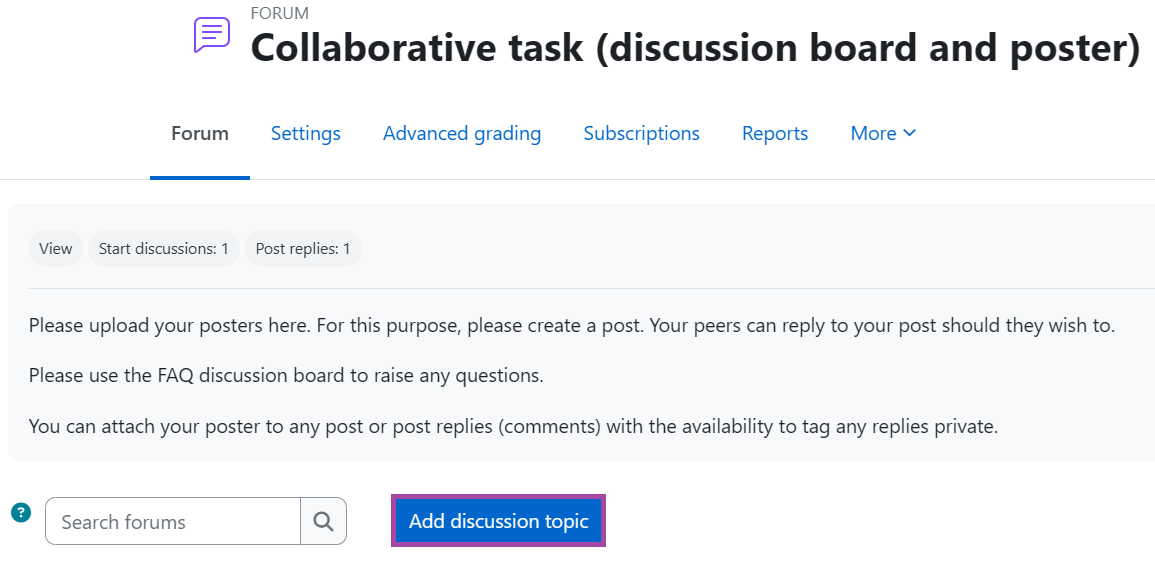
- Please open the discussion board, and then select ‘Add discussion topic’.
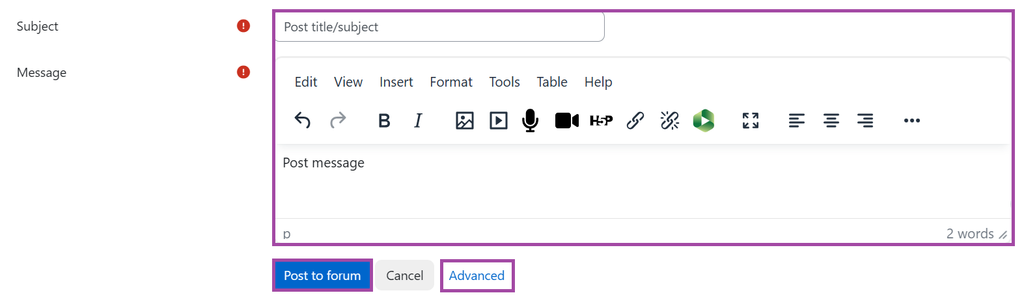
- A new section will open up, where you can enter a subject and write your message in the fields provided. If you need to attach a file, select ‘Advanced’. This will reload the page and display the ‘Attachment’ section, where you can upload the file from your device. Once your message is ready, select ‘Post to forum’ to publish the discussion topic. Remember, after publishing, you have 30 minutes to edit your post before notifications are sent to subscribed students and staff where notifications are enabled.